A Firefox Media Download Stops: Check the Saved File First
When an MP3 or MP4 download stops in Firefox, begin with the browser's download status and the file it actually saved. A stalled transfer is different from a conversion that has not produced a download yet. Before trying another request on Y2Mate, establish which stage stopped and whether a complete local file already exists.
This approach prevents unnecessary duplicate downloads and helps separate source preparation, browser transfer, storage, and playback problems. Keep Firefox's protections enabled throughout the check. A warning or blocked transfer needs attention, not an automatic bypass.
Read the downloads panel before clicking again
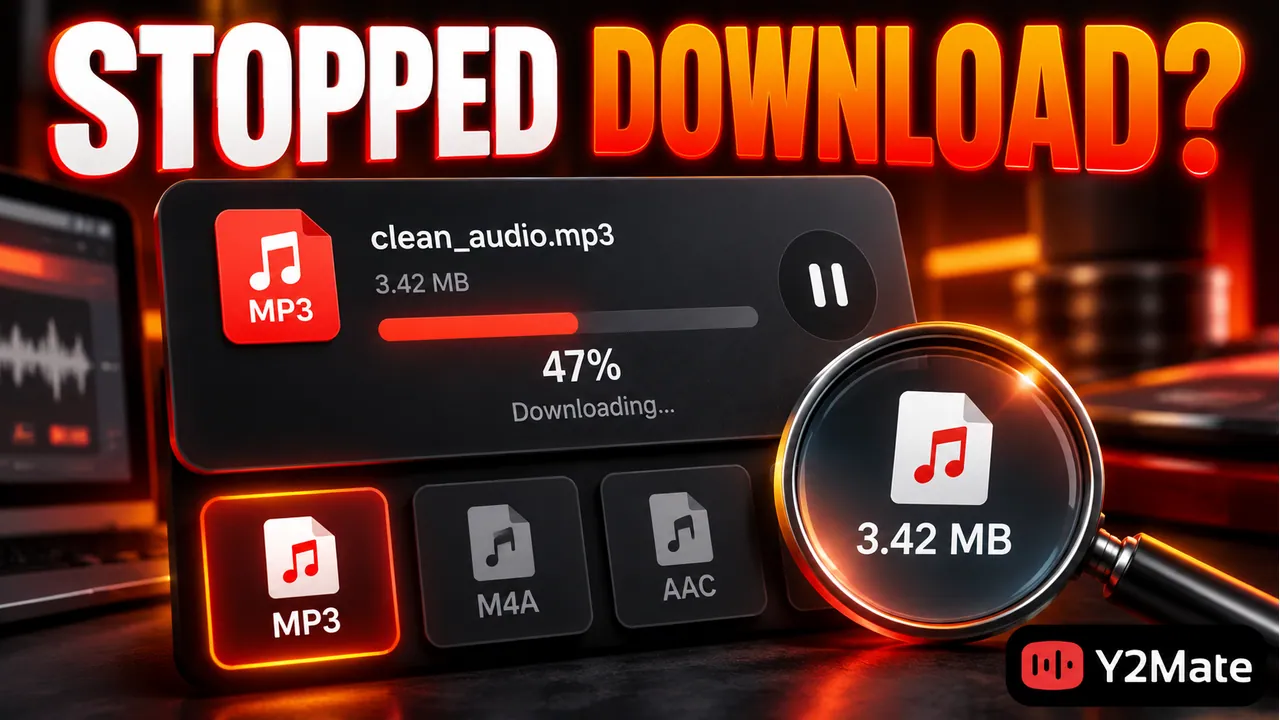
Firefox provides a downloads panel and a history of downloaded items. Look for the entry associated with the recording you selected. Its status can help you distinguish a file that is still transferring from one that finished, was canceled, failed, or was blocked.
Do not judge solely from the converter page. A webpage may still be showing a preparation state while no file transfer has begun, or it may be finished while the browser is still saving. Conversely, a page can remain open after a complete file has already reached the Downloads folder.
If the browser shows no corresponding item, check whether you actually started the final offered download action. Review any visible message from the provider. Repeating a conversion request will not necessarily help if the unresolved step is elsewhere.
Find the file without changing it
Use the downloaded item's location information or open the destination folder you normally use. Compare the expected name, file type, and size. A very small file or an unexpected suffix is a reason to investigate, not a reason to rename it and assume the problem is fixed.
Do not manually merge, rename, or move temporary download pieces to make them appear complete. A partial file is not repaired by removing a temporary-looking extension. Leave browser-managed transfer data alone and use the supported controls available for the item.
If a completed media file exists, open it in a compatible player. Check a later section and the ending, not just a few seconds at the start. A file that begins normally may still be incomplete. For MP4, verify expected sound and picture together.
Separate the likely causes
First consider the connection. An unstable network can interrupt a transfer even after source preparation succeeded. Then check local storage and whether the selected destination is available. A disconnected external drive or full device is not a problem that a different music keyword will solve.
- No browser transfer: review the source and preparation stage.
- Transfer failed: check the browser message, connection, and save location.
- Transfer blocked: review the reason without disabling protection.
- File saved but will not play: verify completion, format, and player compatibility.
Keep these as diagnostic categories, not automatic conclusions. A single symptom can have more than one cause. The article on conversion delay versus download delay explains how to identify the stage before changing your approach.
Retry through the normal workflow
If Firefox offers a supported retry or resume control for the item, consider the displayed status and any warning before using it. Resuming is not guaranteed for every source or transfer. The remote server and the state of the download can affect whether it is possible.
When a fresh attempt is appropriate, return to the real source or conversion page and request the intended option again. Avoid unrelated popup pages or messages offering an installer as a substitute for the media file. Check that the source identity and format still match your task.
The YouTube Downloader page is a same-site starting point for reviewing available audio and video options. A new attempt should be deliberate: verify the previous file first, then save one replacement rather than repeatedly clicking until several ambiguous copies appear.
Respect warnings and verify the replacement
A browser warning is not proof that a particular file is malicious, but it is also not something to dismiss automatically. Review the expected file type, source, and message. An MP3 download should not require you to run an unknown executable or disable device security.
Read the download-warning checklist if the result differs from the media you expected. When uncertain, stop and investigate rather than trying to force a file through a protection control.
After a successful new transfer, open the replacement independently. Check the version, duration, and playback before deleting any earlier verified copy. Only then organize the file or remove an incomplete duplicate that you no longer need.
Frequently asked questions
Does a stopped download mean the converter failed?
Not necessarily. Source preparation, network transfer, local saving, and playback are separate stages. Check the browser entry and actual file to see where the process stopped.
Can Firefox always resume a large MP4?
No universal resume behavior should be assumed. It depends on the transfer and the remote server as well as the browser's supported controls. A fresh request may be necessary when normal resume is unavailable.
Should I turn off security software to retry?
No. Keep browser and device safeguards enabled. Review the warning, expected file type, and source. Do not trade those protections for an unverified media download.