Read a Download Warning Before Opening a Media File
A browser warning is a reason to pause, not a button to dismiss as quickly as possible. When you request an MP3 or MP4 through Y2Mate, the next file should make sense for that request. An unexpected installer, browser extension, or application package is not the same thing as a music download. Check the warning, the proposed filename, and the page that initiated the transfer before deciding what to do next.
This is useful even when a download looks familiar. A song title and a convincing icon do not prove what a file contains. Equally, a warning about an uncommon download is not, by itself, a complete diagnosis of malware. The practical response is to collect the information you can verify and leave your browser's protections enabled.
Compare the request with the actual file
Start with a simple question: what did you ask to save? If you selected an audio option, an MP3 file is a plausible result. If you selected a video option, an MP4 file may be expected. A different format needs an explanation. Do not treat every item arriving after a click as part of the conversion, especially when another page or window has appeared.
For example, you might request a three-minute song and receive a file called MusicPlayerSetup.exe. That filename describes a Windows program, not the requested song. You do not need to run it to discover whether an audio download worked. Stop that unrelated transfer and return to the page where the media option was shown.
Inspect the complete filename rather than the first few words. A misleading name can include more than one extension. The Windows file-type checklist explains how to show extensions and why changing a suffix does not change the underlying file.
Read the browser's explanation
Different warnings describe different problems. A browser may report an insecure transfer, an unusual file, a known harmful program, or another concern. Read the actual message before assuming that the internet connection failed. Repeatedly clicking download will not resolve a security classification and may simply create several requests for the same item.
Microsoft Edge's SmartScreen, for example, uses reputation and reported-risk information to help assess downloads. Such checks are useful safeguards, not a promise that every file without a warning is safe. Keep those protections active, and investigate a warning rather than switching them off to obtain a file.
A webpage can also draw a box that resembles a browser or operating-system alert. Check where the message appears. A page asking you to phone a support number, pay for a repair, or install a special downloader is not the same as the browser's own download status. Do not provide account credentials or payment details merely to open an expected media file.
Separate media controls from unrelated prompts
The purpose of the YouTube Downloader page is to begin a source-and-format workflow. A request to change your browser settings or add an extension is a separate action, not proof that an MP3 is ready. Follow only the controls that correspond to the source and file you selected.
If a click opens another tab, do not assume its contents are the requested output. Return to the known conversion page and inspect its current state. You can close an unrelated page without installing anything it offers. This article does not make an ad-free claim; it explains how to keep an expected file transfer distinct from other page activity.
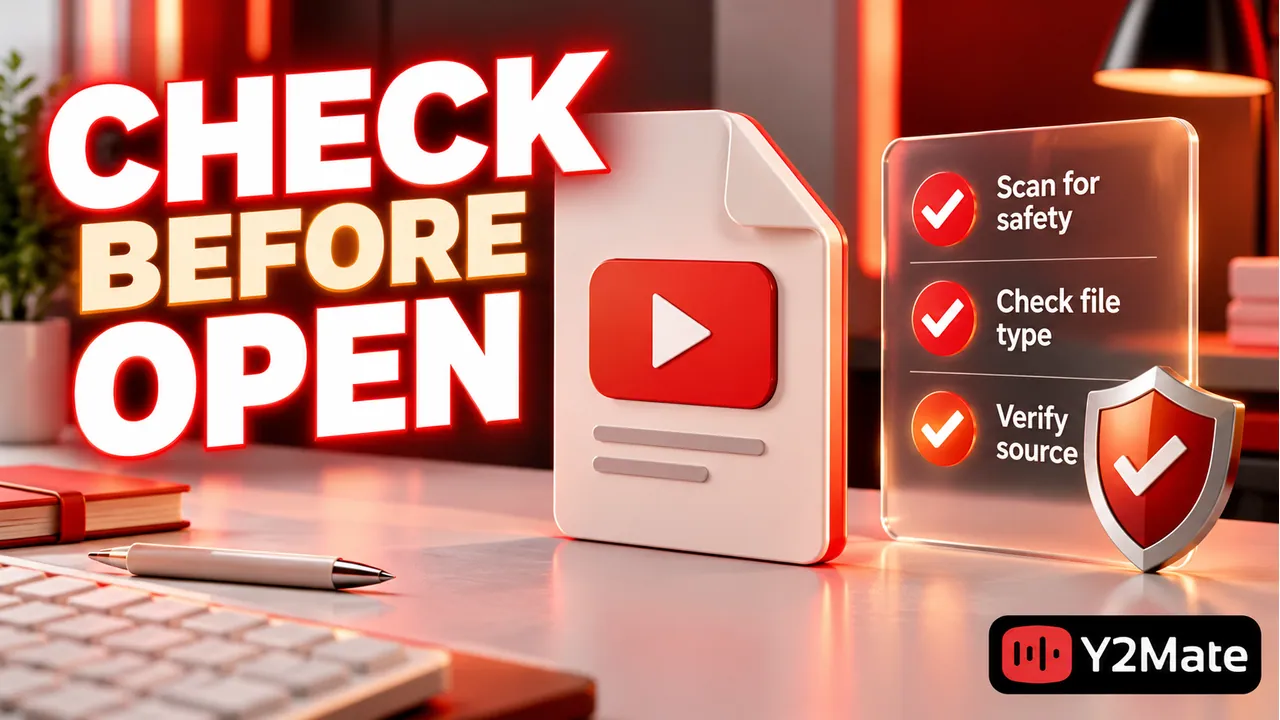
- Confirm the selected source and whether you requested sound or video.
- Inspect the proposed filename and full extension.
- Check whether the browser reports a transfer, a block, or no download at all.
- Stop if the file or destination does not match the intended media request.
- Keep browser and device security protections enabled.
Check a saved item without launching the wrong thing
If a suspicious item has already been saved, locate it through the file manager instead of immediately opening it. File properties can help identify its name, size, and reported type. These clues are not a full security analysis, but they can reveal an obvious mismatch before you run a program accidentally.
Use the device's established security tools when a scan is appropriate. Follow their current guidance, rather than an instruction printed on the download page to ignore the result. If the file is blocked or quarantined, do not rename it, move it around to evade protection, or restore it solely because its title resembles the song you wanted.
An ordinary media file can also be incomplete or contain the wrong recording. Once the expected file passes the checks you can reasonably make, verify playback. The final playback checklist helps separate a finished transfer from a useful, correctly identified download.
Know when to stop and try a clearer source
When the filename, warning, and selected option disagree, stop that attempt. Recheck the original video and choose a permitted source you can identify. A familiar result title does not justify running an unrelated installer, and there is no benefit in accumulating questionable files while trying to guess which one is music.
Keep any error text needed for troubleshooting, but avoid posting private information from your device in a public screenshot. A useful report describes the expected format, the browser's message, and whether the transfer started. It does not need your passwords, cookies, or account details.
Frequently asked questions
Does no warning mean a file is guaranteed safe?
No. A browser's checks are one layer of protection. Continue checking the expected type and source, and keep the device updated. Neither a familiar filename nor a completed progress indicator supplies a universal safety guarantee.
Should I install a player offered by the download page?
Do not treat an installation prompt as a required step for obtaining an MP3 or MP4. First check whether a trusted player already on your device supports the expected file. Investigate unexpected program downloads before opening them.
Can I remove a warning by renaming the file?
Renaming does not make the content safer or convert it into media. Keep safeguards active and address the actual mismatch or security report. If you cannot establish what the file is, do not run it.