Check the Actual File Type on Windows Before Playback
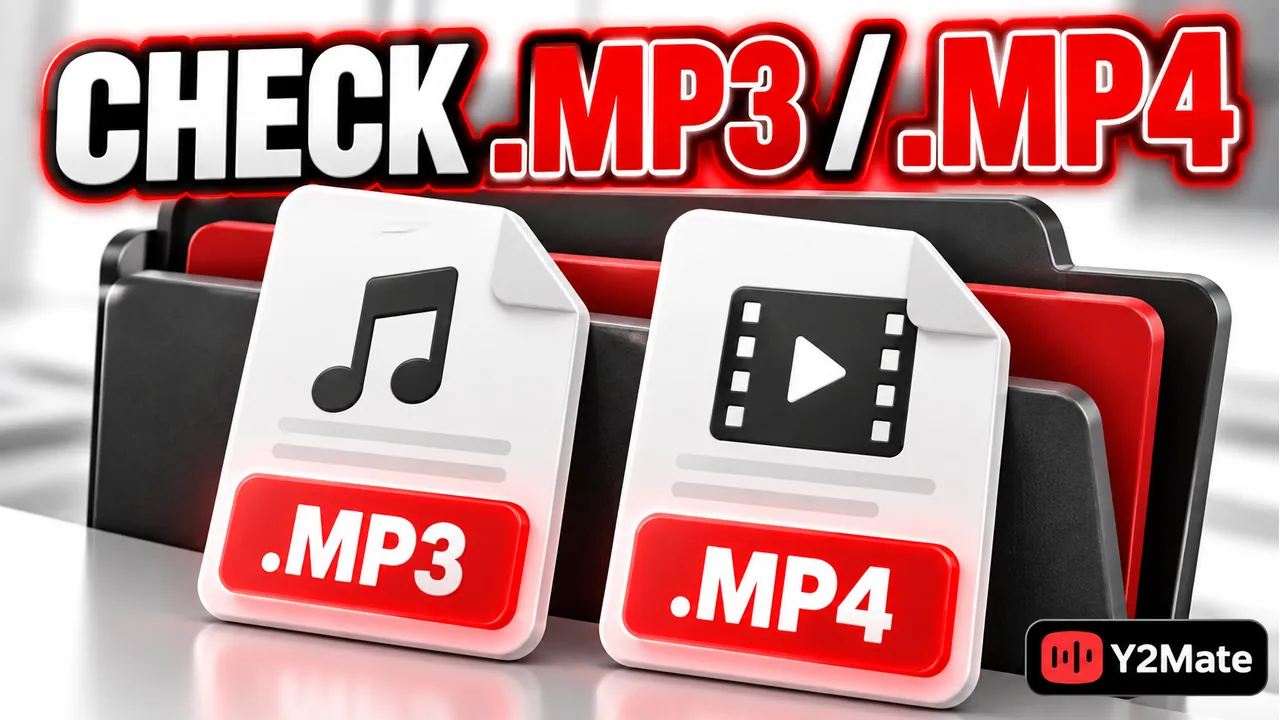
Before opening a new media download on Windows, display its complete filename and check that it matches the option you chose. A file called a song is not necessarily an MP3, and a video thumbnail does not prove that a saved item is an MP4. After using Y2Mate, a quick inspection in File Explorer can reveal a wrong extension, an unfinished transfer, or a file that needs further investigation.
The filename is a starting point, not a complete verification method. Windows uses extensions to help associate files with applications, but the name can be changed independently of the data. The safest sequence is to check the expected format, inspect the saved item, and then confirm playback in a trusted compatible player.
Make the extension visible
On Windows 11, open File Explorer and choose View, then Show, then File name extensions. That setting exposes the suffix after the last period. If your Windows version uses a different layout, look for the equivalent file-extension display control in File Explorer rather than changing folder permissions or installing a utility.
Read the whole name once extensions are visible. Track.mp3 and Track.mp3.exe are not the same filename: the latter ends in .exe, which identifies a Windows executable. An attractive music icon or an MP3-looking word earlier in the name does not make that program the audio file you requested.
For a selected video option, an .mp4 suffix is a useful first check. If you receive an archive, installer, webpage, or another unexpected item, stop before opening it. The download-warning checklist covers the next questions to ask without bypassing the browser's safeguards.
Match the format to the selected option
Return to the source and option you selected if you are unsure what the file should contain. An audio-only selection should not be judged by whether a video image appears, while a video selection needs the picture as well as any expected sound. Format choice and file identity are separate checks, and both matter.
The YouTube to MP4 page is an entry point for video-focused downloads. Use an option actually provided for the selected source rather than assuming that every video offers the same formats or dimensions. Note the choice before saving so you have something concrete to compare with the result.
MP4 is a container format. Its suffix does not tell you every detail about the encoded video and audio inside. Two MP4 files can therefore behave differently in the same player. A file that will not play is not automatically proof of a failed transfer, but its extension alone is not proof of compatibility either.
Inspect the saved item before troubleshooting playback
Find the actual file on disk, not just an entry in the browser's history. Open its properties to inspect the size and reported type. Check whether the browser still shows an active or failed transfer. A file that has not finished saving should not be treated as a complete conversion result.
Imagine saving two items with nearly identical names: Lesson.mp4 and Lesson (1).mp4. The number is normally a naming distinction, not a quality rating. Compare when each was saved and which selection produced it. Do not assume that the newest numbered file is the correct one merely because it appears first in the folder.
- Confirm that the browser says the transfer finished.
- Check the complete filename, especially the final extension.
- Compare the reported size with the expected duration and media type.
- Keep an unexpected executable closed while investigating it.
- Use the actual saved file for playback checks, not a webpage preview.
Do not repair a format mismatch by renaming
Changing a filename from .mp4 to .mp3 does not remove its video or encode its sound as MP3. It only changes the name. That can make the item harder to identify and may lead Windows to choose an unsuitable application. If you need audio instead of video, return to the permitted source and select an available audio option.
Similarly, adding .mp4 to an incomplete or unrelated file does not repair it. Keep the original filename while you determine what happened. A legitimate conversion changes the media data; a rename is an organizational action. Mixing the two makes troubleshooting needlessly confusing.
For audio comparisons, the MP3 comparison checklist explains why source identity, running time, and listening checks are more useful than judging files by a filename or size alone.
Open expected media with a trusted player
When the format is expected and no unresolved warning remains, use a player you already trust that supports that media. If playback fails, read the actual error. An unsupported codec, incomplete transfer, missing audio track, or wrong source each calls for a different response; repeatedly changing the extension does not distinguish them.
Play a short passage first, then check a later point and the ending. For MP4, confirm the picture is the intended clip and that sound is present when it should be. Organize or copy the file only after those basic checks work, so you do not distribute several copies of an unusable item.
Frequently asked questions
Is an .mp3 or .mp4 extension enough to trust a file?
No. It helps identify the expected format, but a name can be misleading. Check the download context, the browser's security status, and actual playback. Keep device security tools active when investigating an unfamiliar item.
Why does the icon show my browser instead of a media player?
An icon can reflect an application association rather than the file's contents. Inspect the complete extension and properties before drawing a conclusion. Do not install a program offered by an unrelated page simply to change the icon.
Should I delete the first copy after a second download?
Not until you know which file is correct and complete. Compare their source, type, duration, and playback first. A second filename with a number does not establish that it is a better replacement.