Download a Tutorial as MP4 or Audio: A Y2Mate Checklist
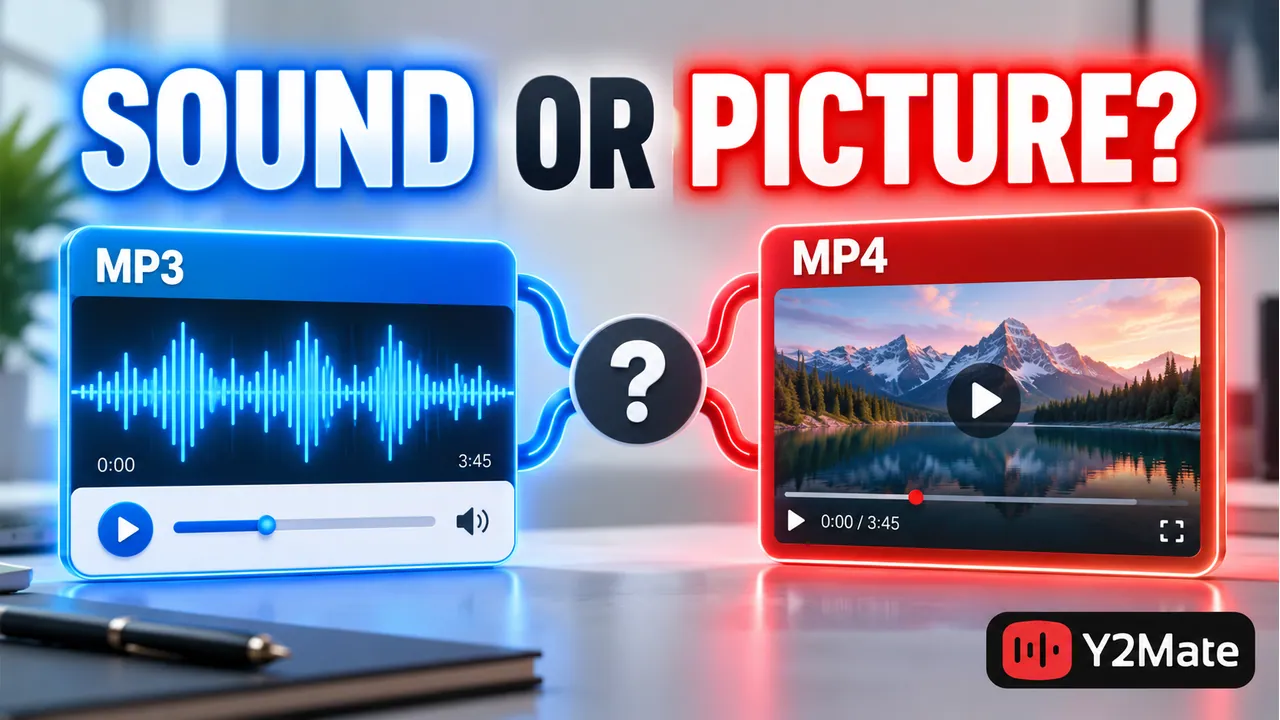
The best file for a tutorial depends on where the useful information lives. If the explanation is entirely spoken, an audio download may be sufficient. If you need diagrams, screen text, hand positions, or a sequence of clicks, keep the picture with an offered video option. When using Y2Mate, choose the format after checking the lesson, not before.
An MP3 file cannot preserve a visual step simply because its source was a video. An MP4 file can carry video and audio, but you still need to verify the actual saved result. This checklist helps you decide what to retain without assuming that every source or output option is available.
Watch for information that the narration leaves out
Preview a section where the instructor demonstrates the task. Some lessons make sense through narration alone. Others rely on phrases such as “choose this option” or “move it here” while the important detail appears only on screen.
A cooking explanation might name every ingredient aloud, yet show an essential texture change without describing it. A software lesson might read out a menu label but demonstrate a keyboard shortcut silently. A music lesson may explain the rhythm while the fingering is visible. These are reasons to retain video.
Ask one practical question: could you follow the relevant part with the screen hidden? If the answer is no, an audio-only version is likely to leave gaps. You do not need to watch the entire source twice; inspect the parts you expect to use and identify what the picture contributes.
Use MP3 when the spoken explanation is enough
Audio can suit a permitted lecture, interview, or explanation whose meaning does not depend on the image. It is convenient when you want to listen without keeping the screen in view. Before saving, confirm that the source includes the whole explanation rather than a short promotional excerpt.
Do not confuse audio convenience with completeness. A slide title, equation, or chart may carry a conclusion that the speaker does not read aloud. If those details matter, choose video or retain separate authorized notes instead of expecting them to appear inside an MP3.
Also check whether the instructor speaks clearly enough for your intended use. A format choice does not automatically improve low-volume speech, remove background noise, or replace missing words. Start from a source that already gives you the information you need.
Use an offered MP4 option for visible steps
For a screen recording or practical demonstration, review the available video choices. Choose one that keeps the important details readable on the device where you will watch it. A resolution label is useful context, but the actual legibility of text and diagrams is the deciding factor.
The YouTube to MP4 page provides a picture-focused entry point. Select only an option presented for the particular video; do not assume the same resolution or encoding is offered for every upload. The separate article on choosing MP4 for a phone screen covers the balance between detail, storage, and practical playback.
After downloading, check both picture and sound. A familiar filename ending does not prove that the file contains every expected track or plays correctly in your chosen app. Watch a section with movement and speech rather than judging from a still preview.
Check captions and timing without making assumptions
Captions displayed by the source player are not automatically part of every downloaded video. They may be a separate player feature or a separate text track. If captions are essential, check the saved file in the player you intend to use and confirm what is actually present.
Similarly, a YouTube link that starts playback at a chosen time does not establish that a conversion will trim the file at that point. Review the complete saved duration. If you need a particular section, do not mistake a playback link for an editing function.
A tutorial's usefulness often depends on sequence. Check that the opening establishes the task and that the last steps are present. Missing the final confirmation can make an otherwise clear demonstration difficult to follow.
Save a useful, permitted reference
Use material you are allowed to download and retain. If you intend to share the tutorial or reuse it in another project, verify those permissions separately. Being able to view a public lesson does not supply every right needed for another use.
Once playback is confirmed, give the file a descriptive name. Include the topic and a version detail that helps you distinguish it from other lessons. Keep your own notes separate from the source recording so that your summary does not look like an official transcript.
Before placing the file in a permanent folder, follow the final playback checklist. It is easier to correct a wrong source, missing sound, or incomplete transfer before you build a collection around it.
Frequently asked questions
Is MP4 always better for learning?
No. A spoken explanation can work well as audio when visual material is not needed. Video is the more useful choice when diagrams, gestures, screen text, or movement carry part of the lesson.
Will an audio download include subtitles?
Do not assume that it will. An MP3 is an audio-focused file. Source captions and transcripts are separate from the spoken recording, and their availability depends on the source and the offered functions.
How do I know the tutorial saved correctly?
Open the local file, check its duration, and review a section containing the important instructions. For video, verify the picture and sound together. A preparation message on a webpage is not proof that a complete file reached your device.