Choose a Clear Download Folder Before Saving Music
A sensible download folder makes it easier to find, check, and organize an MP3 after saving it. Before building a collection, decide where your browser will place files and test that location with one permitted recording. When downloading through Y2Mate, knowing the destination is just as useful as knowing which song version you selected.
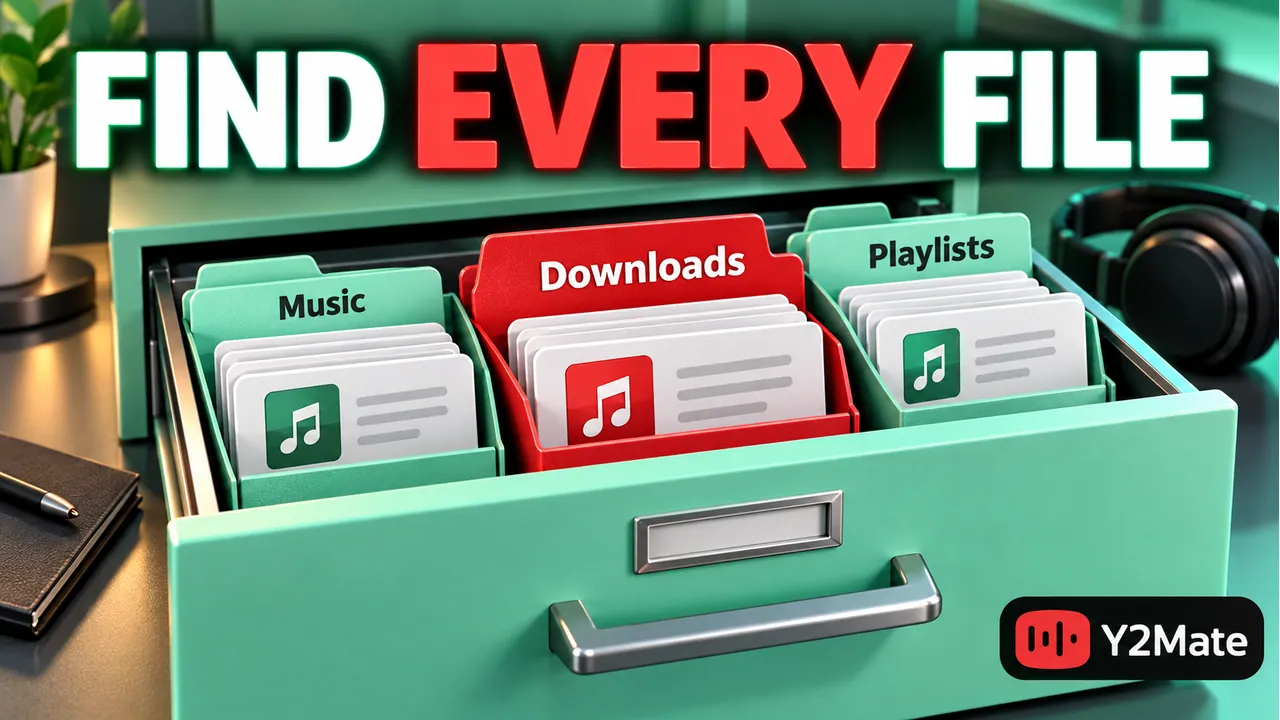
You do not need a complicated music archive. A clear folder name, a recognizable filename, and a quick playback check usually provide a better starting point than several unverified files scattered across Downloads, cloud storage, and removable drives.
Distinguish the saved folder from the music library
Your browser saves a file to a storage location. A music app may maintain its own library, and a browser's download history is another separate list. These views can refer to the same recording without doing the same job.
If an MP3 does not appear inside a music app, first check the actual folder. The file may have saved correctly without being imported into that app. A missing library entry does not automatically mean the browser download failed.
The article on MP3 downloads and Apple Music explains one example of that distinction. Whichever player you use, establish that the local file exists and plays before investigating library organization.
Check where the browser currently saves
Open the browser's normal download information or settings and review its destination where that option is provided. Controls and wording differ between browsers, operating systems, and versions. Use the settings actually available on your device rather than looking for a universal menu path.
On a desktop, the destination may be a standard Downloads folder, a folder you chose earlier, or a removable drive. Some browser configurations offer a location choice for individual downloads. On a phone, saving behavior is more closely tied to the device's supported storage locations and file apps.
Do not change permissions on protected system folders to create a destination. Choose an ordinary location you can use normally. If an external drive or network location is involved, make sure it is available before starting a transfer and understand whether you will still be able to access it later.
Give one folder a clear purpose
Consider what you plan to keep together. A small set of permitted practice recordings could have one folder, while spoken lessons might belong in another. Separate files by a useful purpose rather than by every possible technical characteristic.
For example, “Listening practice” is clearer than “New folder 4.” If you keep both a live and studio version of the same song, a version label in the filename may be enough; you do not necessarily need another layer of folders.
- Choose a destination that you can find from your file manager.
- Keep enough free space for the planned files and normal device activity.
- Use a short, descriptive folder name.
- Avoid depending on a drive or cloud location you cannot access when needed.
The Mp3Juice search page provides a same-site music-search starting point. Before saving several results, confirm the artist, version, and destination for the first one.
Test the destination with one complete file
Save one recording and wait for the browser transfer to finish. Open the chosen folder directly and locate the file. Do not rely only on a recent-items list, because that can conceal which location you are actually using.
Check the expected media extension and size where visible, then play the file. Listen to the beginning and a later section. A readable filename is not proof that the content is complete or that it is the intended recording.
If the file went somewhere unexpected, review the browser's current behavior before downloading more. It is easier to correct one misplaced result than to sort a collection whose files were saved to several different destinations.
Organize only after verification
Once the saved result is correct, rename it if the original name is confusing. Keep the appropriate media extension. Changing MP4 to MP3 in a filename does not convert the contents and can make player selection more confusing.
If you decide to move the file, copy it to the intended folder and verify that copy before removing your only working original. The safe organization checklist covers destination checks and the difference between a copy and a move.
Also remember that clearing a browser's downloads history is a separate task from deleting stored media. Use the file manager when you need to inspect the actual files, and read deletion confirmations carefully, especially in synchronized cloud folders.
Keep the routine manageable
A good folder routine should make the next recording easier to handle. Confirm the source, save one file, check playback, and organize it. Repeating that short sequence is more dependable than downloading a large batch and hoping all the files are complete.
Keep only material you are permitted to download and retain. For important files, use an appropriate backup rather than treating the browser's history as a recovery system. A list of past downloads does not contain a replacement copy of the audio.
Frequently asked questions
Can I use the standard Downloads folder?
Yes, if it suits your device and you can find the files easily. A dedicated folder can help organization, but it is not required for a successful media download.
Why does my phone use a different location from my computer?
Browsers and operating systems manage storage differently. Check the actual destination on each device rather than assuming a desktop setting applies to a phone.
Will choosing a new folder add tracks to a music app?
Not automatically. The saved file and an app's library are separate. Verify the file first, then use the supported library process for that app if needed.