Move a Download Without Losing Your Only Copy
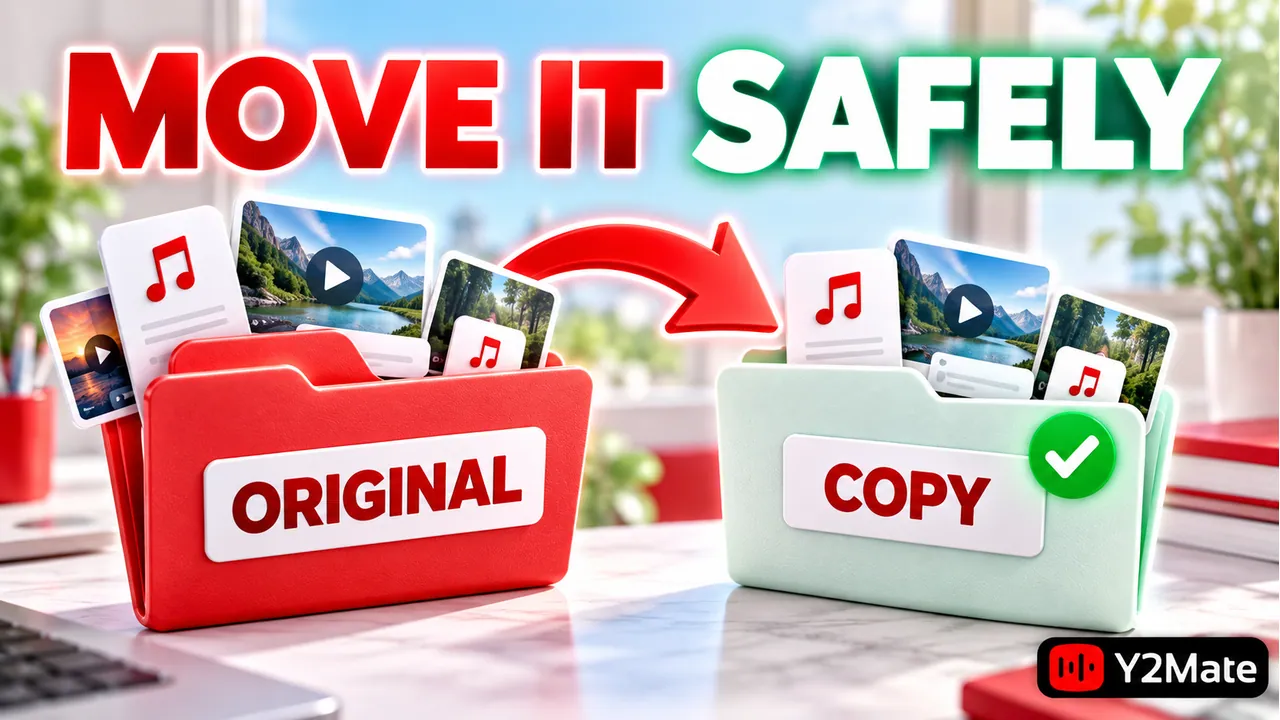
Before moving a downloaded MP3 or MP4, confirm that the original file is complete and choose a destination you can find again. For an important recording, copy it first, open the copy, and only then decide whether the original should be removed. A tidy folder is useful, but not at the cost of your only working file.
After a permitted download from Y2Mate, treat playback verification and organization as separate steps. The browser may have saved a file successfully while its name, location, or recording version still needs checking. Organizing an unverified result simply moves the uncertainty somewhere else.
Locate and open the original
Start from the browser's downloaded-item information or the folder where it saved the file. Check the expected filename and type. If several similar names appear, compare their sizes and modification information where available, but do not use those details alone to decide which is complete.
Play the recording before moving it. For audio, check the opening and a later section. For video, confirm both the picture and expected sound. Look for the ending as well, particularly when the source was long or the connection was interrupted.
Wait until the transfer is finished. Moving a file while the browser or another app is still writing it can create confusion about which location contains the complete result. Close a preview if it prevents a normal copy operation, rather than forcing a change to file permissions.
Choose a destination with a clear purpose
A useful folder answers a simple question: why are these files together? You might separate spoken lessons from music, or group a small set of permitted recordings for one project. Avoid an elaborate folder structure that makes it harder to remember where a file went.
Pick a location under your control that has enough room. On a phone, consider whether the location is local or connected to a cloud service. On a computer, check that an external drive is actually connected before depending on a shortcut to it.
Give the destination a recognizable name. A folder called “Audio practice October” is more informative than several nested folders all called “New.” You can refine organization later after the files are verified.
Understand copy versus move
Copying creates another file at the destination while leaving the original in place. Moving changes where the file is kept. The exact controls vary between devices and apps, so read the operation you are choosing rather than assuming that dragging always has the same effect.
For a file you cannot easily replace, a verified copy is the safer starting point. Open it from the destination folder, not from a recent-items list that might still point to the original. Check that it contains the expected recording and continues to play beyond its first seconds.
- Confirm the original download and its playback.
- Copy it into the intended folder.
- Open the destination copy and check it independently.
- Decide whether to keep both files or remove an unneeded duplicate.
If copying fails, leave the original alone while you investigate available space, the destination, and any message from the operating system. Do not delete the source to “make the move work.”
Keep cloud behavior in view
Cloud-connected folders can make files accessible across devices, but a visible entry is not always the same as a complete local copy. Check whether the item is available where and when you intend to use it.
A deletion in a synchronized folder may affect the stored item rather than merely remove a local copy. Read the action and confirmation carefully. If your goal is offline listening on a phone, the article on keeping iPhone audio available offline explains the availability check.
Do not assume that synchronization itself is a complete backup strategy. For important permitted files, keep an appropriate independent backup and know where it is. No folder-management workflow can guarantee recovery after an accidental deletion.
Rename deliberately, then tidy the list
Once the new copy is verified, use a descriptive filename if necessary. Include the version or topic when it distinguishes the recording. Preserve the expected media extension; changing a suffix does not turn audio into video or convert one format into another.
A browser's downloads list may still show the earlier location after a move. That does not necessarily mean the file vanished. Open the destination folder directly. The article on download history versus stored files explains why removing a list entry and deleting a file are different tasks.
For another permitted recording, the YouTube Downloader page provides a format-neutral starting point. Finish checking one result before building a large collection of unverified files.
Frequently asked questions
Should I move or copy a file first?
When the file matters, copy first and verify the destination copy. Then decide whether you need the original. This avoids making an untested transfer your only copy.
Why does the browser say a moved file is missing?
The list may refer to its original saved location. Check the folder where you moved it and open that file directly. A stale list reference is not proof that the new copy failed.
Can I rename an MP4 to MP3 while organizing it?
Renaming does not convert the contents. Keep the appropriate extension and use a real, supported conversion when you need another format. Verify the new output before replacing a working file.