Clear a Downloads List Without Deleting Your Music
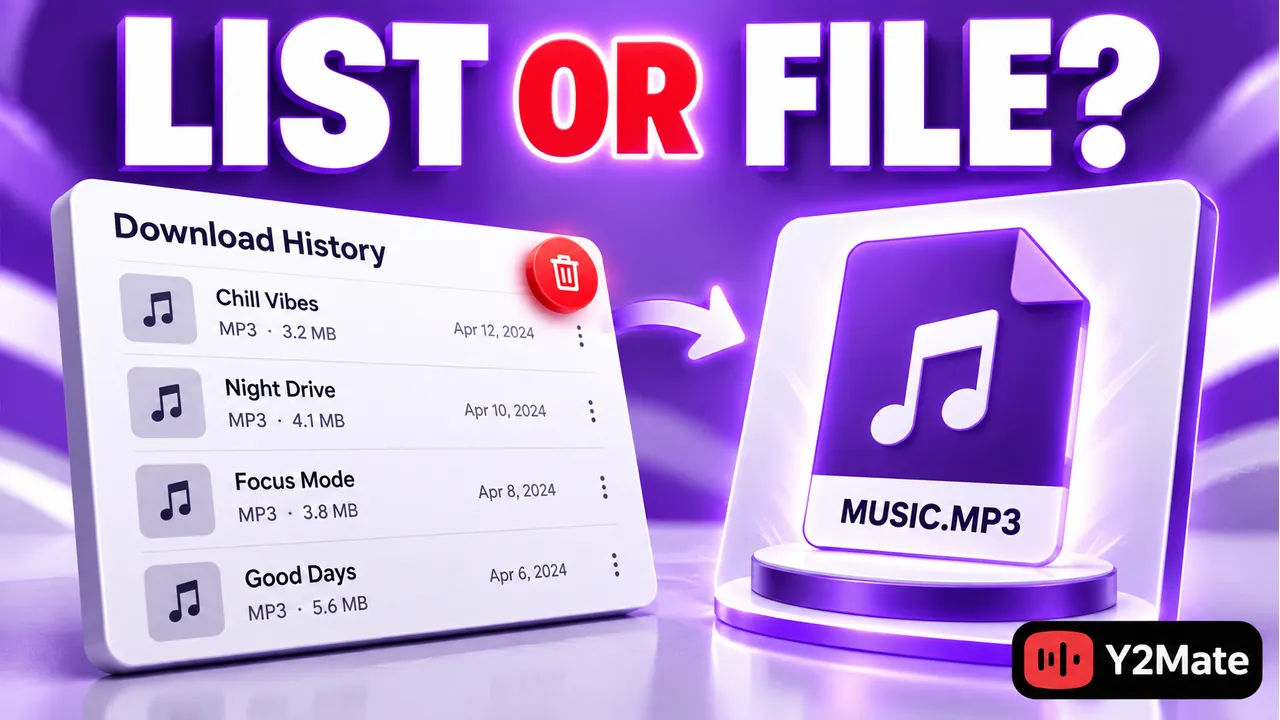
A browser's downloads list records transfers; your music files live in storage. Clearing the list is not necessarily the same as deleting those files. Before tidying download history after using Y2Mate, locate the media you want to keep and understand the control you are about to use. A clean browser panel and a clean Downloads folder are two different outcomes.
This distinction is easy to overlook because a browser can offer both history controls and real file actions in the same menu. One removes a record from the interface, while another can remove the saved item from disk. Read the label instead of treating every removal option as interchangeable.
Identify the three places involved
The first place is the webpage where you selected a source and download option. The second is the browser's transfer history. The third is the folder holding the completed MP3 or MP4. These can display related information, but they are not three independent copies of your song.
Closing a conversion tab does not organize the saved folder. Removing a history entry does not necessarily remove the file. Conversely, deleting the file through the file manager can leave an old browser entry that points to a location where nothing remains. Judge each action by the object it changes.
For example, you might see a successful download from yesterday in the browser panel but find that the file has since been moved to Music Clips. The old history record does not establish its current location. Start from the actual stored file when deciding what to retain.
Find and verify the music before clearing history
Use the browser's supported folder-reveal control while the entry is still available. Then inspect the file in the file manager and play it. Note its folder and complete name if you want to find it after the history is cleared. A clear destination is more useful than relying indefinitely on a browser record.
The Mp3Juice search page can help begin another music search, but it is not a catalog of files already on your device. Before downloading the same recording again, check whether you already have a verified copy. A browser list that looks empty does not prove the local folder is empty too.
If the downloaded file is still being transferred, leave it alone until its status is clear. Do not use a history cleanup as a way to guess whether preparation or saving has finished. Check the active transfer first, then organize completed items separately.
Use the control that matches your intention
Firefox distinguishes removing an entry from history and clearing download history from deleting a downloaded file. Its documented Clear Downloads and Remove From History controls do not delete the saved files; a Delete action does. That difference is exactly why the menu label matters.
Other browsers have their own list and file-management controls, and labels can change between versions. When the action is unclear, cancel and inspect the current help for that browser. Do not assume a button with a trash-like icon affects only history or only storage.
- To simplify the browser panel, choose a documented history or list action.
- To organize music, work with the saved files in their actual folder.
- To free storage, verify which files you no longer need before deleting them.
- To keep a collection, confirm playback and a stable location first.
Private browsing can also affect how long history records are retained. An absent record after a private session is not a reliable inventory of downloaded files. Inspect storage directly when you need to know whether a media file exists.
Organize files without breaking references
Once you have a verified copy, choose a sensible folder and descriptive filename. The download-folder checklist helps you separate temporary transfers from a collection you intend to keep. A folder for checked files makes cleanup less dependent on remembering every browser session.
If a music app references the original path, moving or deleting the download can affect playback in that app. Clearing browser history is unrelated to this reference. Check how your player or library handles imported files before removing the original, particularly when you have not confirmed a second full copy.
Use the safe-copy workflow when moving files between folders or devices. Verify the destination before deleting the original. Cleanup should make the collection easier to use, not turn its only working copy into a missing-file error.
Perform a simple before-and-after check
Before clearing the list, play one file you want to retain and note its folder. Clear only the intended history entries. Then reopen that same folder and play the file again. This confirms the effect of the chosen control without using your whole collection as an experiment.
If an item is missing afterward, stop other cleanup actions and check what operation actually ran. Inspect any supported recovery location on your system, but do not assume recovery is guaranteed. Avoid creating more changes while you are still trying to identify whether history, storage, or a library reference was affected.
Frequently asked questions
Does clearing download history free the music's disk space?
Not when the action only removes history entries. The media remains in its storage folder. To assess disk usage, inspect the actual files rather than the number of rows in the browser panel.
Can I find a song after its browser entry is gone?
Yes, if the saved file remains and you know where to look. Search the chosen download folder by its filename or inspect your organized music folder. The history entry is a shortcut, not the file itself.
Should I clear history while a download is active?
First check the transfer's actual status. Keep active transfers separate from cleanup so you do not confuse a hidden record with a completed or canceled file. Verify completed media before organizing it.