Keep iPhone MP3 Downloads Available Without Internet
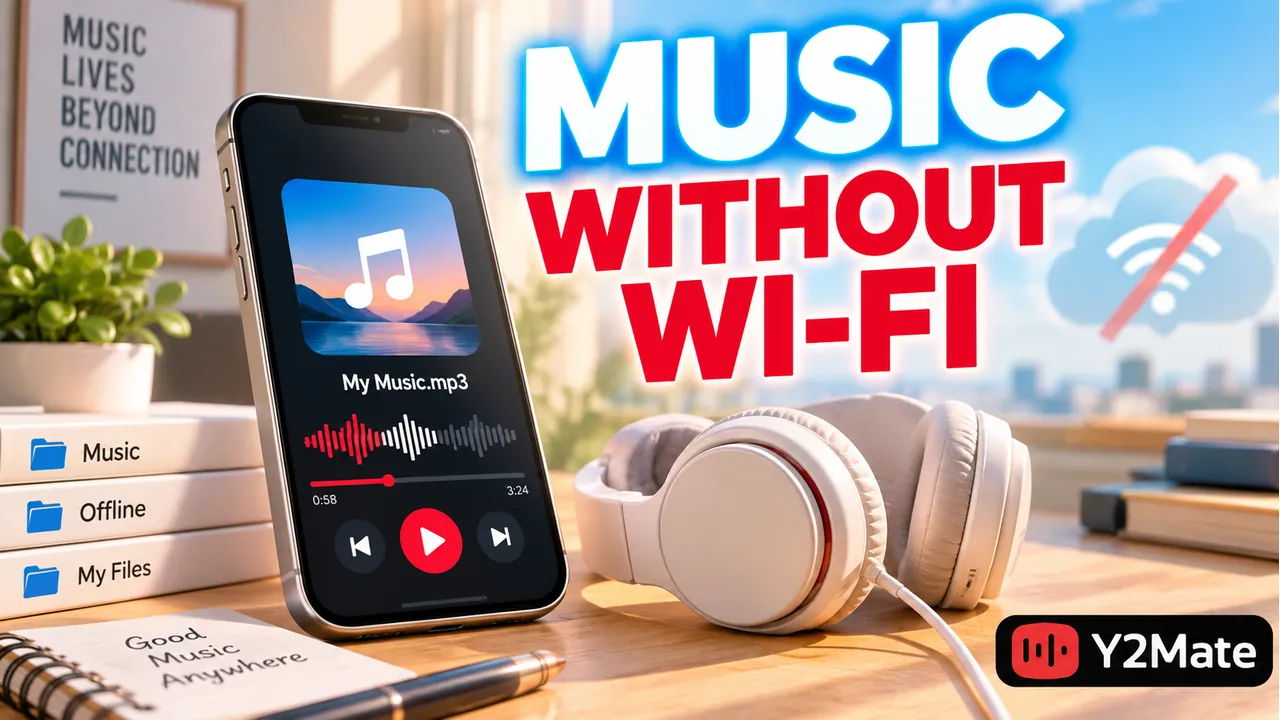
Seeing an MP3 in a file list does not always mean its audio is stored locally and ready to play without internet. After downloading with Y2Mate, find the file in the Files app, open it, and check whether the complete recording is available on the iPhone. A browser completion message and a cloud folder entry answer different questions.
The most reliable practical check is simple: once you have a verified local copy, test it without an internet connection. Do this before a journey or another situation where you expect to listen offline, rather than discovering later that the file still needs to be retrieved.
Find the file the browser actually saved
Apple identifies the Downloads folder in Files as the place to look for files downloaded from the internet. The location used by your browser and its settings can involve iCloud Drive or another supported destination. Begin with the browser's downloaded-item information, then locate that same file in Files.
Check the name, extension, and size where those details are available. If you saved several similar tracks, do not assume that the first matching name is the newest complete copy. Browser-generated numbering can distinguish repeated downloads without explaining whether their contents differ.
Open the file directly from its saved location. Hearing the beginning is useful, but also check a later part and the expected ending. A short playable fragment is not the same as a complete MP3 download.
Distinguish a cloud listing from a local copy
Files can show items stored through iCloud Drive as well as local locations supported on the device. A cloud entry helps you find an item, but its visibility alone does not establish that all of its data is currently available without a connection.
If the file needs downloading from cloud storage, let that operation finish while you have a dependable connection. Depending on your iOS version and the location, the available file-management actions may differ. Use controls actually shown on your device, rather than searching for a menu label borrowed from a Mac or Windows guide.
You can also keep a copy in an appropriate local destination when your device and chosen app support it. Confirm the new copy before relying on it. The safe file-moving checklist explains why verification should come before deleting or reorganizing an original.
Make a short offline playback check
Choose a time when disconnecting briefly will not interrupt another important task. Open the intended saved file with a compatible app, then test it without a network connection. Check that playback can continue and seek to a later part of the recording.
- Confirm you are opening the saved MP3, not a webpage or streaming result.
- Verify the duration and the recording version you intended.
- Try a later section instead of checking only the first seconds.
- Reconnect when the check is finished and review any file that needed the network.
This is a practical availability check, not a promise that every app will keep every file indefinitely. Storage management, your own changes, and cloud behavior can affect future availability. Recheck important files before you plan to depend on them.
Keep enough room and a recognizable filename
Leave free storage on the phone. A collection that nearly fills the device is harder to maintain, and you may need space for an additional verified copy while moving files. Save the recordings you actually need rather than downloading many versions before listening to any.
Use descriptive names after confirming the contents. Include a live, acoustic, or instrumental label when it helps distinguish recordings. A short, readable filename is often more useful on a phone screen than a long string copied from a source title.
The mobile-focused Tubidy page is a same-site way to begin a music search or supported conversion. It does not change where iOS stores your files or replace the need to check local playback.
Do not confuse Files with a music library
A downloaded MP3 is a file. A music app's library is a separate collection managed by that app. Finding the MP3 in Files does not automatically add it to every music player or make it appear in a streaming catalog.
Use a compatible playback app for the local file, or follow the supported library-import process for the device and app you use. Do not assume there is a universal “add to Music” action on iPhone for every saved file. The article on downloads and Apple Music libraries explains this distinction more fully.
Also distinguish removing a local cloud download from deleting the stored item. These actions can have different consequences. Read the actual confirmation on your device and avoid deleting a file merely to force another download when you have no verified copy.
Frequently asked questions
Why can I see an MP3 but not play it offline?
The entry may represent a cloud-stored file whose data is not fully local, or the saved transfer may be incomplete. Retrieve and verify the complete file while connected, then test local playback again.
Does a download automatically appear in Apple Music?
No automatic library addition should be assumed. Files storage and a music app's library are different. Follow the supported process for the app and device you use.
Should I delete the cloud version after copying it locally?
Not as a first step. Verify the local copy and understand what the deletion action affects. Keep a suitable backup for files you are permitted to retain and care about.
Offline convenience does not change the source's permissions. Make sure the recording is appropriate for your intended download, storage, and later use.